The concepts of Specificity, which represents selector priority, and Inheritance, which receives styles from parents, are elements we always encounter when working with CSS. However, I rarely had the opportunity to understand exactly what Cascade, the parent concept of these two terms, really is.
Recently, a book I’ve been reading called CSS In Depth introduced this content in the first chapter. The content covered in this post is available for free reading in Chapter 1 of CSS In Depth: Cascade, specificity, and inheritance.
Why is it Called ‘Cascading’ Style Sheet?
The first letter ‘C’ in CSS stands for Cascading. Looking up the definition in dictionaries, most commonly it refers to waterfalls and cascading structures.
cascade (noun):
- a small waterfall, typically one of several that fall in stages down a steep rocky slope
- a process whereby something, typically information or knowledge, is successively passed on
cascade (verb): to fall or hang in copious or luxuriant quantities
Cascade is a set of rules for how style sheets are applied, and fundamentally defines how CSS works and how to resolve style sheet conflicts.
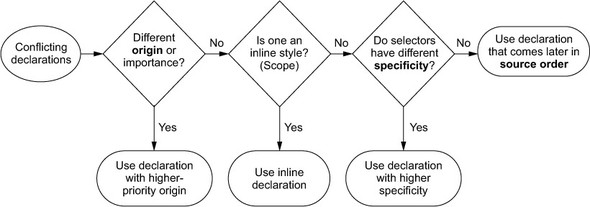
If you’ve worked with CSS at least once, the following style application priority order that you’re familiar with has a form similar to a waterfall, which is why the word Cascade is included in the language name.
- Style sheet origin — User-added styles take priority over browser default styles.
- Inline styles
- Selector specificitySpecificity — Which selector has higher priority?
- Source order — The order in which style sheets are declared
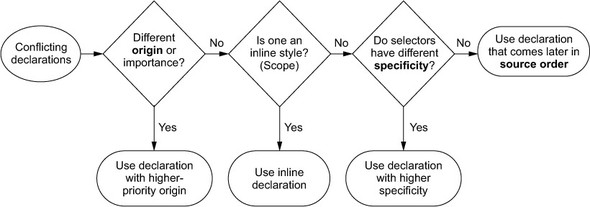
Flowchart showing cascade priority Source
Until now, I misunderstood that Cascading contains the meaning of waterfall, thus referring to the pattern where parent styles are inherited by child styles. While not entirely wrong, this pattern is a sub-rule of cascade called inheritanceinheritance.
Understanding Specificity
Specificity is a measure by which browsers determine which CSS property value is most relevant to an element and apply it. It is based on matching rules composed of various types of CSS selectors.
The matching rules are broadly ranked into three categories and follow the notation form (A, B, C):
- Number of ID selectors: (N, 0, 0)
- Number of class + attribute + pseudo-class (e.g.,
:hover) selectors: (0, N, 0) - Number of element selectors: (0, 0, N)
| Selector Example | Specificity |
|---|---|
#id | (1, 0, 0) |
.class | (0, 1, 0) |
[type="text"] | (0, 1, 0) |
:hover, :checked, :invalid | (0, 1, 0) |
input | (0, 0, 1) |
input[type="text"] | (0, 1, 1) |
input[type="text"].class | (0, 2, 1) |
input[type="text"]:hover.class | (0, 3, 1) |
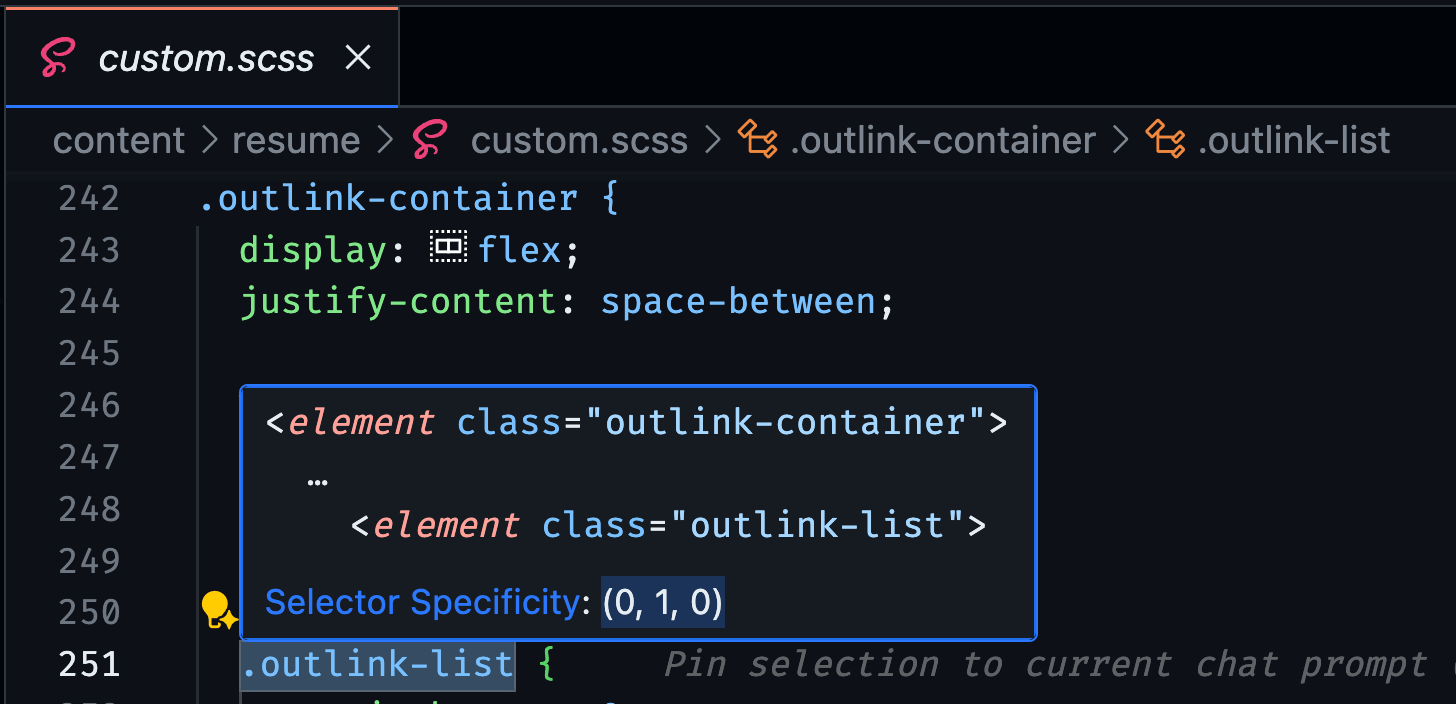
VS Code TIP ⚡️ You can check specificity directly in the tooltip that appears when you hover over a CSS selector.
Note: The universal selector
*, combinators>+~, and the negation pseudo-class:not()do not affect specificity. However, selectors inside:not()do affect specificity.
Increasing Specificity Without Using !important
Using !important to prioritize a specific property value gives it the highest specificity, breaking the natural cascade within the style sheet. I know it’s a bad habit, but I was using !important without other alternatives because I didn’t know a safer method.
Best Practice: Increasing Specificity by Using More Selectors
<a class="child" href="/home">go to home</a>
a {
  background-color: green;
}

.child {
  background-color: orange;
}
Let’s increase specificity through a simple example. Between a and .child, the selector using a class has higher specificity, so the link’s background is determined to be orange.
.child {
  background-color: green;
}

.child {
  background-color: orange;
}
When specificity is the same in CSS, the last style sheet in source order is selected. So even if you change the style sheet with the a tag selector to the .child selector to change the background to green, the background color won’t change. How can you change to a green background without adding an id attribute to the element with the a tag?
Specificity depends not only on the type of selector but also on the number of selectors. In other words, adding more selectors increases specificity.
I changed the link’s background to green by adding a tag to the selector.
a.child {
  background-color: green;
}

.child {
  background-color: orange;
}
What About css-in-js?
css-in-js is one of the CSS writing methods in modern web frontend development. It typically has usage where styles are directly injected into components. I wondered how to increase specificity by adding more selectors with this writing method.
import { css } from '@emotion/core';

const buttonStyle = css`
  background-color: blue;
`

<button className={buttonStyle}>Press the button</button>
<button class="css-1jc3q86">Press the button</button>
Typical css-in-js libraries produce string-type class names as build results. Specificity increases even when using the same class name repeatedly, so you can apply this as shown in the example below.
import { css } from '@emotion/core';
import cn from 'classnames'

const buttonStyle = css`
  background-color: blue;
`

<button className={cn(buttonStyle, buttonStyle)}>Press the button</button>
<button class="css-1jc3q86 css-1jc3q86">Press the button</button>
As a more convenient method, using the && selector adds one more selector to the style sheet definition. In SASS, && produces an error and you must use &#{&} to add one more class.
const buttonStyle = css`
  && {
    background-color: blue;
  }
`;
.css-1jc3q86.css-1jc3q86 {
  padding: 0;
}
There Is No Silver Bullet
These two rules can be good advice, but don’t cling to them forever. There are exceptions where they can be okay, but never use them in a knee-jerk reaction to win a specificity battle. two rules of thumb
The author says at the end not to follow these rules unconditionally.1 This is because depending on the situation, the appropriate solution may not match the rules introduced here.
The next chapter I’ll read is Working with relative units, which introduces relative units. Among the contents of the next chapter, there’s an intriguing subtitle “The end of the pixel-perfect web.”
I considered using relative units in my current project, but put it on hold because I didn’t know any special advantages compared to pixels. I hope I can learn something here.
Besides the rule to avoid using
!importantintroduced in this article, there’s a rule in the book to avoid using id in selectors. I thought it was okay to not include content about id in the article’s structure, so I omitted it from this post. ↩︎